
Digital communication has changed significantly with the development of smartphones, computers, messaging applications, social media platforms, and online entertainment services. People now interact with audio content almost every day, whether they are listening to music, watching videos, sending voice messages, attending online meetings, or using voice assistants. As these technologies become more advanced, users frequently encounter different notifications and indicators that describe what their devices are doing. One such expression that may create confusion is audio displayed meaning.
When users notice an audio-related message on their screen, they may wonder whether their device is recording sound, playing an audio file, processing a voice message, or displaying information about an available sound source. The meaning can depend on the application, device, operating system, and situation in which the message appears. Understanding the context is therefore important before deciding what the notification represents.
This article explains the possible meanings of audio display messages, why they appear, how audio indicators work, and what users should understand when encountering them. It also explores their importance in modern technology and provides practical explanations for common situations.
What Does Audio Displayed Mean?
The expression audio displayed generally refers to audio-related information, content, or activity being shown visually on a device screen. Instead of presenting sound alone, a digital platform displays information that helps users understand the audio being played, recorded, processed, or made available. This information might include a playback indicator, sound waveform, voice message notification, audio file name, recording status, or media controls.
For example, when someone plays a voice message in a messaging application, the screen may display a waveform, duration, playback button, and progress indicator. These visual elements allow the user to understand what is happening without needing to interact with the audio itself. Similarly, a music application may show the current song title, artist name, album artwork, and playback controls while the music continues playing in the background.
The exact audio displayed meaning is not universal because different platforms use different interface designs and notification systems. A message appearing in a video editor may refer to an audio track visible in the editing timeline, whereas the same type of expression in a communication application may describe an audio message or sound-related notification.
Why Does an Audio Message Appear on Your Screen?
Audio-related messages and indicators can appear for several reasons. Modern devices constantly communicate information about their media functions, sound settings, recording activities, and connected accessories. When an application starts playing a sound or detects an audio source, it may display information to help users understand the current activity.
One common reason is media playback. When users play a song, video, podcast, or recorded message, the application may display the audio source and its current status. This makes it easier to pause, resume, skip, adjust the volume, or control playback. Another possibility is audio recording. Applications that support voice notes, video recording, or online meetings may show recording indicators to inform users that sound is being captured.
Operating systems also display audio information when headphones, Bluetooth speakers, microphones, or other sound devices are connected. These indicators help users identify the active audio output or input device. Consequently, seeing an audio-related notification does not automatically mean something unusual is happening.
Common Situations Where Audio Is Displayed
1. During Music and Video Playback
Music and video applications regularly display audio information while content is playing. The screen may show the name of a song, playback duration, volume controls, sound settings, and other relevant details. These features help users manage their listening experience without interrupting the content.
For instance, when someone watches a video on a smartphone, the application may display playback controls along with audio settings. Some platforms also provide options for subtitles, sound quality, audio language, and speaker selection. These features make multimedia applications easier to use and improve accessibility.
2. In Messaging Applications
Messaging platforms frequently use audio indicators when users send or receive voice messages. Instead of presenting a plain audio file, the application may display a waveform or playback button. The visual representation provides information about the length and availability of the recording.
In some applications, users can also see whether an audio message has been downloaded, played, or is still loading. These indicators make conversations more convenient because users can recognize voice messages without opening every individual attachment.
3. During Voice Recording
When someone records audio through a smartphone or computer, the recording application may display a microphone symbol, timer, waveform, or recording status. These visual signals help users understand that the microphone is active.
A waveform, for example, represents changes in sound intensity over time. When a person speaks, the waveform may move or change according to the sound being captured. This provides immediate visual feedback and can help users identify whether their microphone is receiving audio.
4. During Online Meetings
Video conferencing applications use different audio indicators to show microphone and speaker activity. Users may see a microphone symbol, muted status, speaker selection, or an indicator showing that someone is speaking.
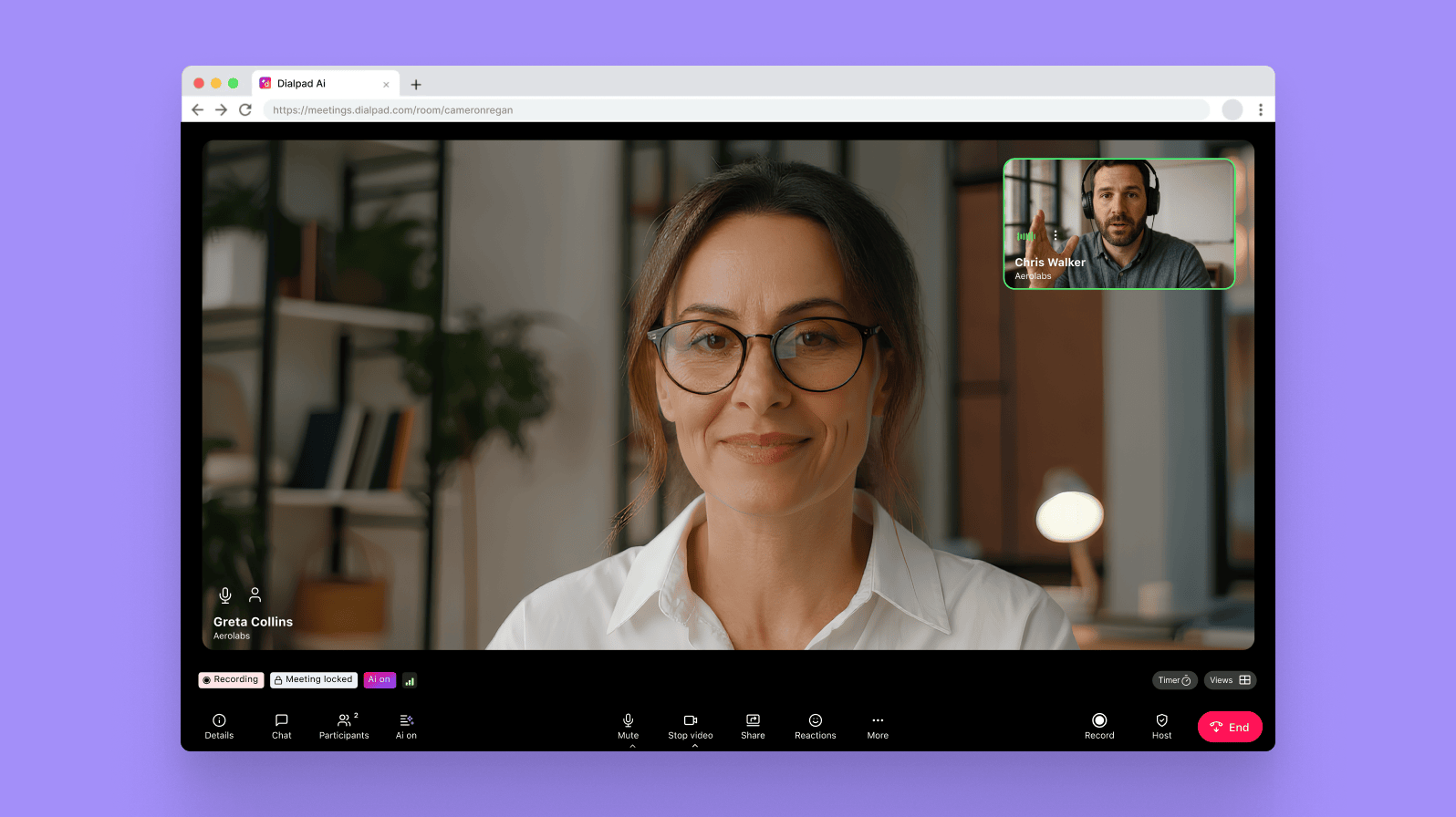
These features are particularly useful in professional meetings, online classes, webinars, and virtual interviews. They help participants identify whether their microphones are active and reduce confusion during group conversations.
Different Types of Audio Display Indicators
Audio information can appear in several visual formats depending on the purpose of the application. Understanding these formats makes it easier to identify what a particular notification or screen element represents.
| Audio indicator | Possible meaning | Common use |
|---|---|---|
| Waveform | Visual representation of sound | Voice recordings |
| Speaker symbol | Audio output or playback | Music and videos |
| Microphone symbol | Microphone availability or activity | Recording and meetings |
| Playback bar | Audio progress and duration | Media applications |
| Volume indicator | Current sound level | Smartphones and computers |
| Audio file name | Identification of an audio file | File managers and editors |
These indicators are designed to make audio functions understandable through visual information. Their appearance and behavior may differ between applications, but their general purpose is to communicate sound-related activity.
How Audio Display Works on Modern Devices
Modern smartphones, tablets, and computers use a combination of hardware and software to process audio. A microphone captures sound waves and converts them into digital signals that applications can record or process. Similarly, speakers and headphones convert digital audio information into sound that users can hear.
The operating system manages communication between audio hardware and applications. When an application requests access to a microphone or starts media playback, the system may update its interface to reflect the activity. This can involve displaying a microphone indicator, media notification, sound output selection, or recording status.
The visual information displayed on the screen does not necessarily contain the actual sound. Instead, it represents details about the audio activity. For example, a waveform is a visual representation of changes in an audio signal rather than the sound itself. Likewise, a playback progress bar shows how much of a recording has played without displaying the complete audio content.
Is Audio Displayed Related to Recording or Listening?
One common misunderstanding is that every audio-related notification indicates recording. However, audio display information can refer to several different activities, including listening, recording, playback, file processing, and sound management.
When an application displays a song title and playback controls, it generally indicates that media content is available or currently playing. When a recording application shows an active microphone indicator, it may mean that the microphone is being accessed. A voice message waveform, meanwhile, usually represents an existing recording that can be played.
It is important to distinguish between these situations because they involve different functions. Users should check the application responsible for the notification and review the device’s microphone permissions when they are concerned about privacy. On supported smartphones, privacy indicators and permission settings can provide additional information about microphone access.
How to Understand Audio Display Messages on Different Platforms
Android Smartphones
Android devices display audio information through media notifications, sound settings, application interfaces, and privacy indicators. When music or a podcast is playing, the notification panel may show playback controls and media information. If an application uses the microphone, supported Android versions may display a privacy indicator.
Users can also review microphone permissions through their device settings. This helps them understand which applications have permission to access the microphone and manage those permissions when necessary.
Apple iPhones and iPads
Apple devices use different visual indicators for media playback, microphone access, and connected audio accessories. The Control Center provides access to sound controls and information about current media playback. Depending on the situation, an orange indicator may appear when an application is using the microphone.
These visual signals help users understand how audio functions are being used. They also make it easier to manage sound output, microphone permissions, and connected devices.
Windows and Mac Computers
Desktop operating systems display audio information through system settings, application interfaces, and sound controls. Users can select microphones, speakers, headphones, and other connected devices.
Audio editing applications may also display multiple sound tracks, waveforms, and recording timelines. These features are especially important for people working with podcasts, music production, video editing, and professional voice recordings.
Common Problems Associated With Audio Display
Although audio indicators are useful, users may occasionally experience problems when they do not behave as expected. For example, a media notification might remain visible after playback has stopped, or an application may show a microphone indicator when the user does not remember starting a recording.
Such situations can occur because of background applications, delayed notifications, connected devices, software bugs, or permission-related behavior. Sometimes an application continues running in the background even after the user has moved to another screen.
The following basic troubleshooting steps can help identify common audio-related issues:
-
Restart the application displaying the notification.
-
Check microphone and media permissions in device settings.
-
Disconnect and reconnect Bluetooth headphones or speakers.
-
Restart the device if an indicator remains stuck.
If the problem continues, updating the operating system or the affected application may help. Users should also check which application is responsible for the notification rather than assuming that every audio message represents an unexpected recording.
How Audio Display Improves User Experience
Visual audio indicators play an important role in making modern digital platforms easier to operate. Sound is not always sufficient to communicate what an application is doing. Users may be in a noisy environment, have their devices muted, or prefer visual information because it is easier to understand.
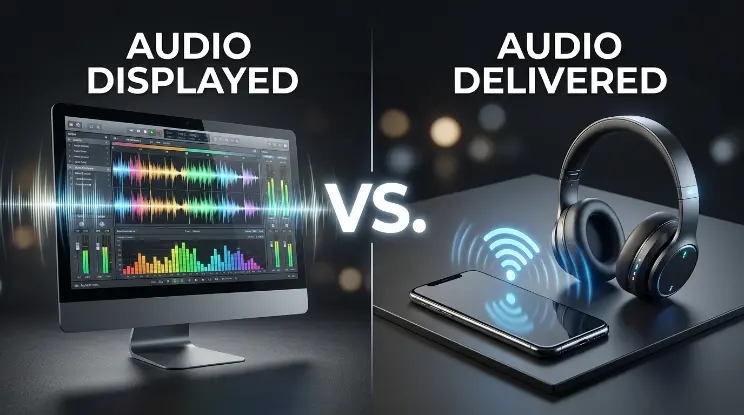
For example, a waveform allows someone to identify a voice recording without immediately playing it. A microphone indicator helps meeting participants understand whether their microphone is active. Playback controls allow users to manage audio content quickly without navigating through multiple screens.
These features also support accessibility. People who are deaf or hard of hearing may benefit from visual representations, captions, and written notifications. Similarly, people using devices in quiet environments can understand audio-related activities without turning on their speakers.
As digital interfaces continue to develop, audio indicators are becoming more integrated with accessibility tools, artificial intelligence, voice recognition, and multimedia applications.
The Role of Audio Display in Modern Technology
Audio technology is no longer limited to traditional music players and recording devices. It is now an important part of smartphones, smart televisions, gaming systems, virtual assistants, video conferencing platforms, and connected home devices.
Artificial intelligence has also expanded the ways applications process and present audio information. Speech recognition systems can convert spoken words into text, while transcription tools can generate written records of meetings and conversations. Some applications can identify speakers, remove background noise, or translate spoken content into different languages.
In these situations, visual indicators help users understand the relationship between sound input, processing, and output. An application might show a recording waveform, a transcription status, or a message indicating that an audio file is being processed. These developments make audio interfaces more interactive and useful across personal and professional environments.
However, users should remember that features differ between platforms. An audio-related message in one application may have a different purpose from a similar message in another.
How to Stay Safe When Using Audio Features
Audio functions can involve sensitive information, especially when applications use microphones to record conversations or process voice commands. Users should understand which applications have microphone access and review their privacy settings periodically.
It is also important to install applications from trusted sources and avoid granting unnecessary permissions. If a recording application displays an unexpected microphone indicator, users can check their recently used applications and review microphone permissions.
For professional meetings and personal conversations, users should also follow applicable privacy rules and obtain consent where required before recording other people. These precautions help maintain responsible digital habits without preventing users from enjoying useful audio features.
Conclusion
Understanding audio-related notifications and visual indicators can make everyday technology easier and less confusing. From music playback and voice messages to microphone permissions and professional recording software, digital devices use different visual elements to communicate sound-related activities.
The audio displayed meaning ultimately depends on the context in which the expression appears. It may describe audio content shown on a screen, a visual representation of a recording, playback information, or an indicator connected to microphone activity. Therefore, users should consider the application, device, and surrounding interface before interpreting a particular message.
As technology continues to advance, audio features will become increasingly connected with artificial intelligence, accessibility, communication, and multimedia experiences. Learning how these indicators work allows users to manage their devices more confidently, understand their privacy settings, and make better use of modern digital tools.